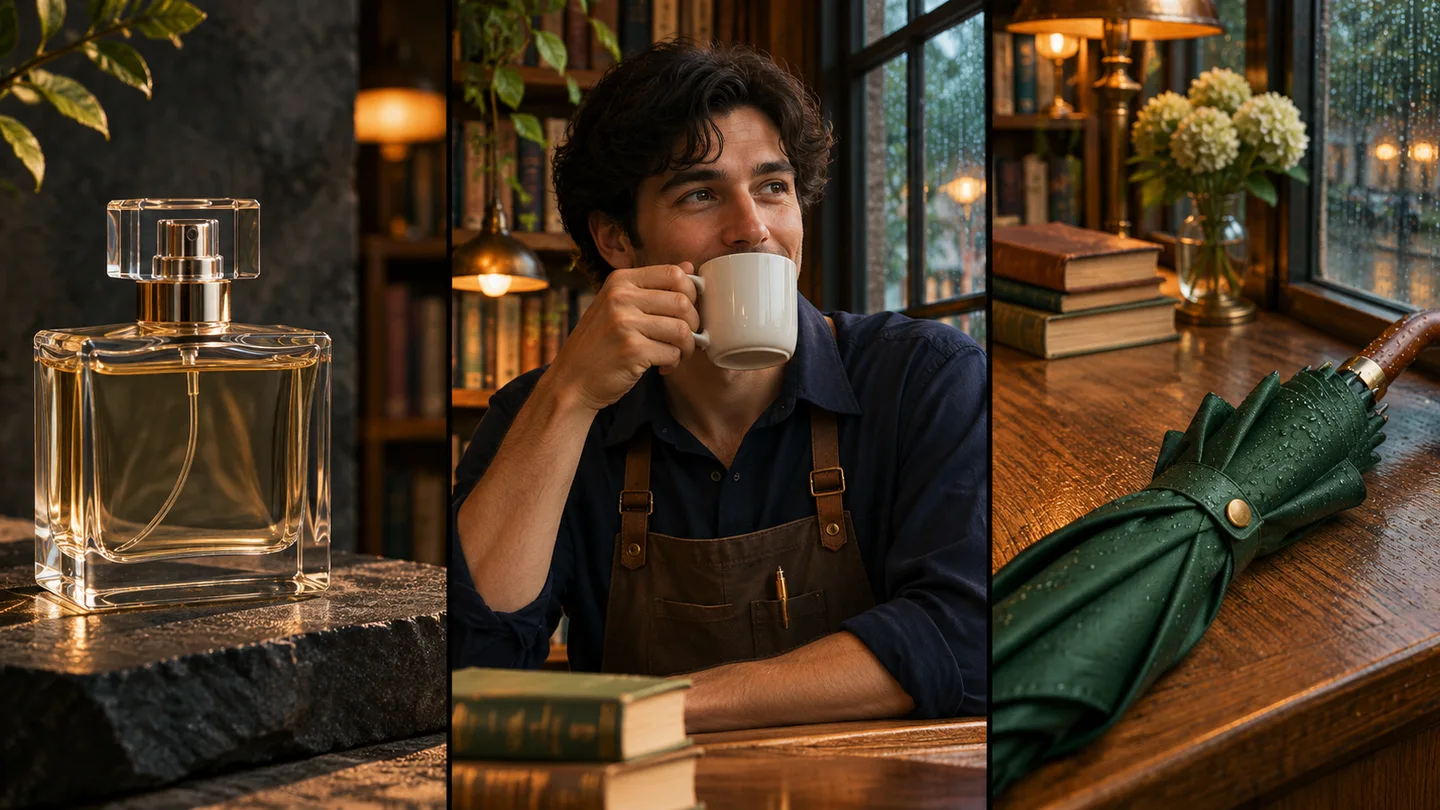
Start with the shot you need to make. If you have a product photo, check whether the shape holds as the camera moves. If you’re animating a person, look at how their hand meets a prop. For a short story, check whether the action and sound carry across a cut. These are practical ways to compare Seedance 2.5, Kling, Jimeng and Hailuo with footage you could actually use.
What’s the difference between Seedance and Jimeng? Seedance 2.5 is a video generation model. Jimeng is one of the creative platforms that offers it. Try Jimeng if you want to make and edit reference images before animating them. If your assets are ready, you can start generating a Seedance video below. Jimeng’s Seedance 2.5 page
How Seedance, Kling, Jimeng and Hailuo compare
| Option | A task to try first | What to check |
|---|---|---|
| Seedance 2.5 | A reference-led shot or a clip with both visual and audio cues | Whether the subject stays consistent and sounds land on the right actions |
| Kling 4.0 | Fast subject movement, tracking shots or complex camera moves | Whether the outline, spatial relationships and camera path hold during fast motion |
| Jimeng | Generate or edit a reference image, then animate it | How many steps it takes to get a clip and whether you can reuse the edited asset |
| Hailuo | Changing expressions, body poses or stylized movement | Whether expressions feel natural and whether hands intersect or distort props |
Use these tasks as starting points. The developers’ release notes describe reference-based generation and targeted editing in Seedance 2.5, motion and reference controls in Kling 4.0, and character movement and stylization in Hailuo 2.3. Record the model version and mode shown in the interface when you run your comparison. ByteDance Seed · Kuaishou Kling 4.0 · MiniMax Hailuo 2.3
Three AI video prompts to try
1. Product video | Check whether the shape holds
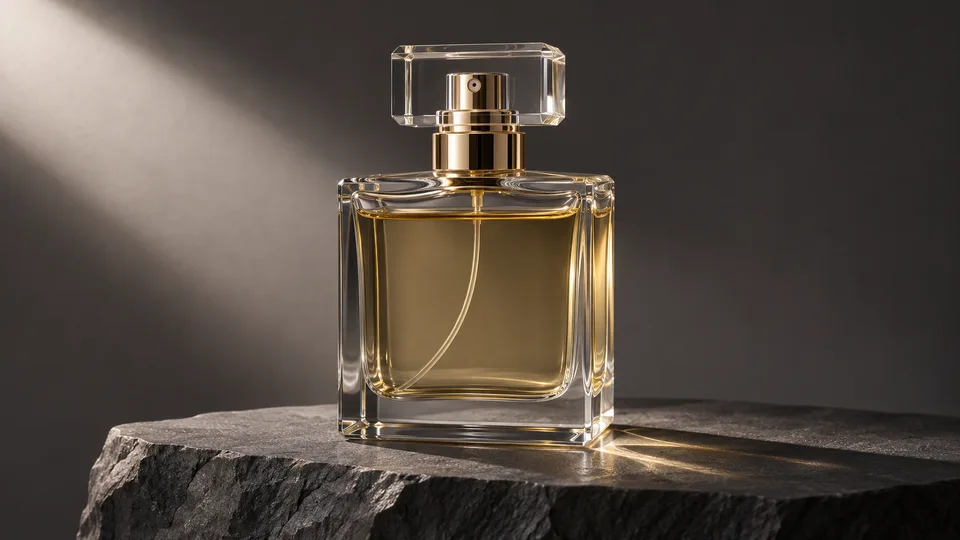
Upload the same photo of an unbranded perfume bottle and choose image to video. Start with a slow sideways move so you can compare the bottle and cap from a few angles.
A square, clear perfume bottle stands on a dark gray stone plinth. The camera slides slowly from left to right as side lighting catches the edges of the glass. Keep the bottle proportions, cap shape and liquid level consistent. Keep the background and plinth still. Add no on-screen text.
Review the clip. Pause at the start, middle and end. Check for a shifted cap, flickering glass edges and reflections that move naturally with the camera. If the bottle warps, shorten the camera move and run another pass. Seedance image to video
2. Character motion | Watch the hand, prop and eyeline
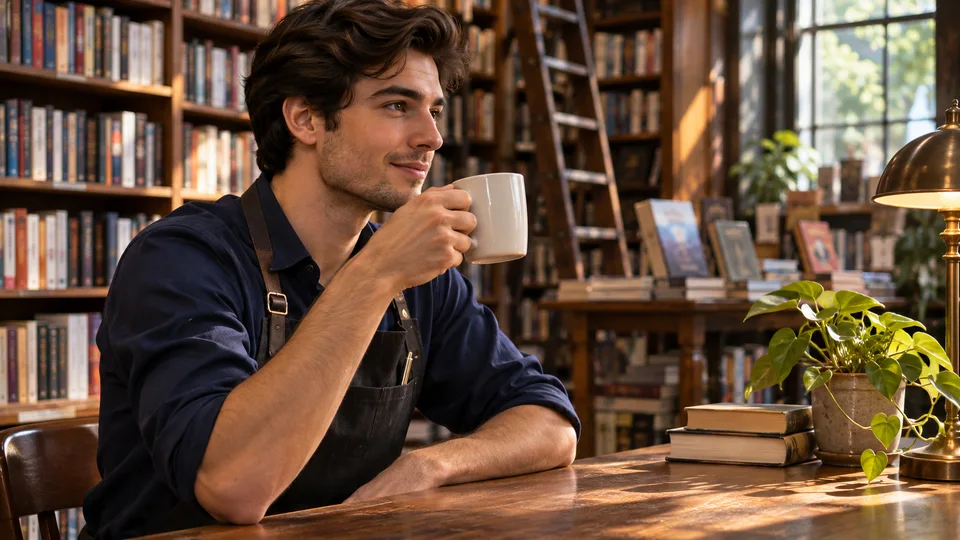
Use the same upper-body reference image across tools, or run the prompt as text to video everywhere. A locked camera makes it easier to inspect the movement.
Locked medium shot. A shop assistant in a navy shirt sits at a wooden table, picks up a white ceramic mug with their right hand, pauses at chest height, glances down at the mug and sets it back on the table. Everything else on the table stays in place.
Review the clip. Watch the pickup and set-down. Check whether the fingers pass through the handle, whether the mug changes shape in the hand and whether it settles on the table. If the model skips a step, generate the pickup and pause first, then add the set-down once that motion works. Seedance text to video
3. Two-shot story | Check continuity and sound cues
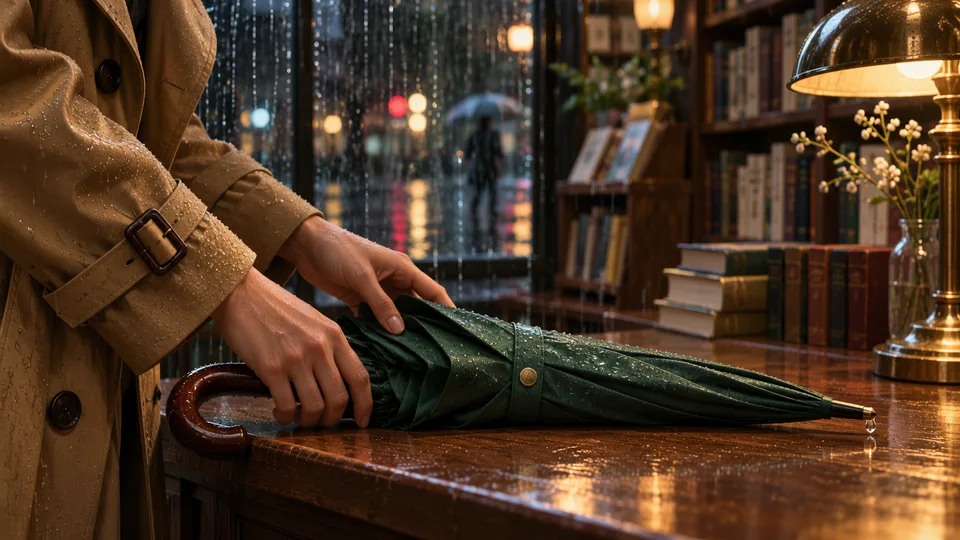
Cut from a recognizable action to a close-up. If your mode outputs audio, include the doorbell and rain in your review.
Shot one, medium shot. On a rainy night, a person in a tan trench coat pushes open the glass door of a bookshop. The doorbell rings once. Shot two, cut to a close-up of the same person’s hands placing a folded dark green umbrella on a wooden counter. One drop falls from its tip. The rain outside gets quieter when the door closes. No dialogue.
Review the clip. Compare the sleeve, umbrella color and screen direction across the cut. Listen for the bell as the door opens. If the subject changes between shots, generate them separately and use the end of the first shot as a reference for the second. Try first and last frames if the shot needs to land on a specific composition. Seedance first and last frame guide
How to compare the results and pick a tool
Choose the prompt closest to your project. Match aspect ratio, duration, reference assets, resolution and audio settings wherever possible. Start with three clips per model and record how many pass your checks and what needs redoing. If a tool exposes different settings, note the difference and decide whether it affects what you need to deliver.
For product footage, check the silhouette and materials first. For character work, inspect hand-to-prop contact frame by frame. For a clip with sound, watch it once more with the audio on. Use the three clips to decide which tool deserves another round on this shot.
Frequently asked questions
Is Seedance better than Kling?
Start with Seedance 2.5 if the shot calls for reference images or sound. If the same shot involves fast movement or a wide tracking move, run it in Kling 4.0 as well. Choose the output that comes closest to what you need to deliver.
Will Jimeng and Seedance produce the same video?
Even when both sessions use Seedance 2.5, the prompt, reference assets, mode and defaults can affect the result. Compare those settings first, then see which output is easier to use in the rest of your project.
How should I compare Seedance and Hailuo?
Pick a shot with a clear action, like picking up a mug or turning to open a door. Check whether the action completes, the expression feels natural and the subject stays consistent. If your project needs sound, check how it lines up with the action in a mode that supports audio.
Choose a scene, paste the prompt and generate your first clip. Try Seedance now